Basic Usage
This document contains a simple tutorial on how to use DAVE, including:
-
Adding datasets
-
Creating workflows
-
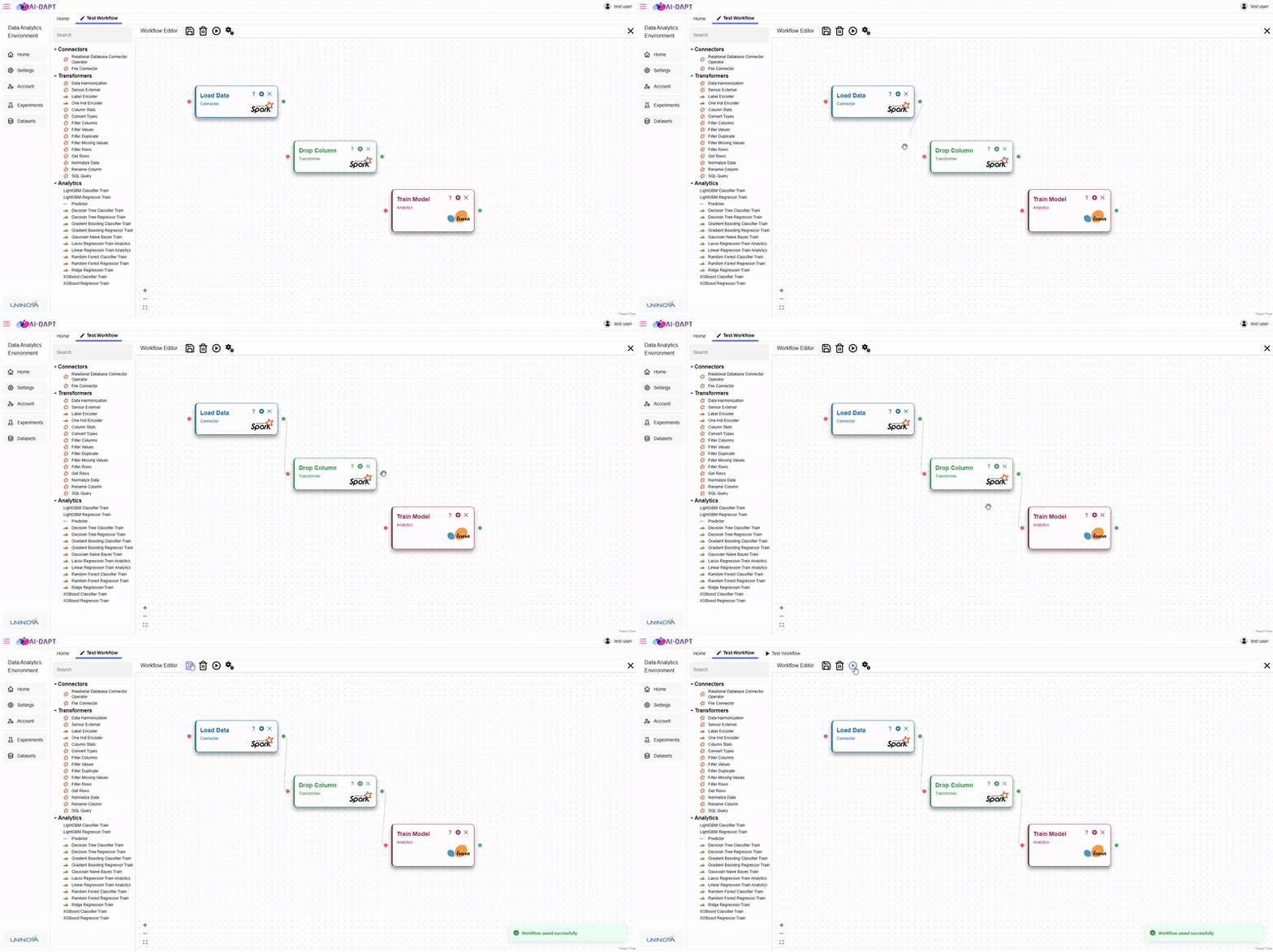
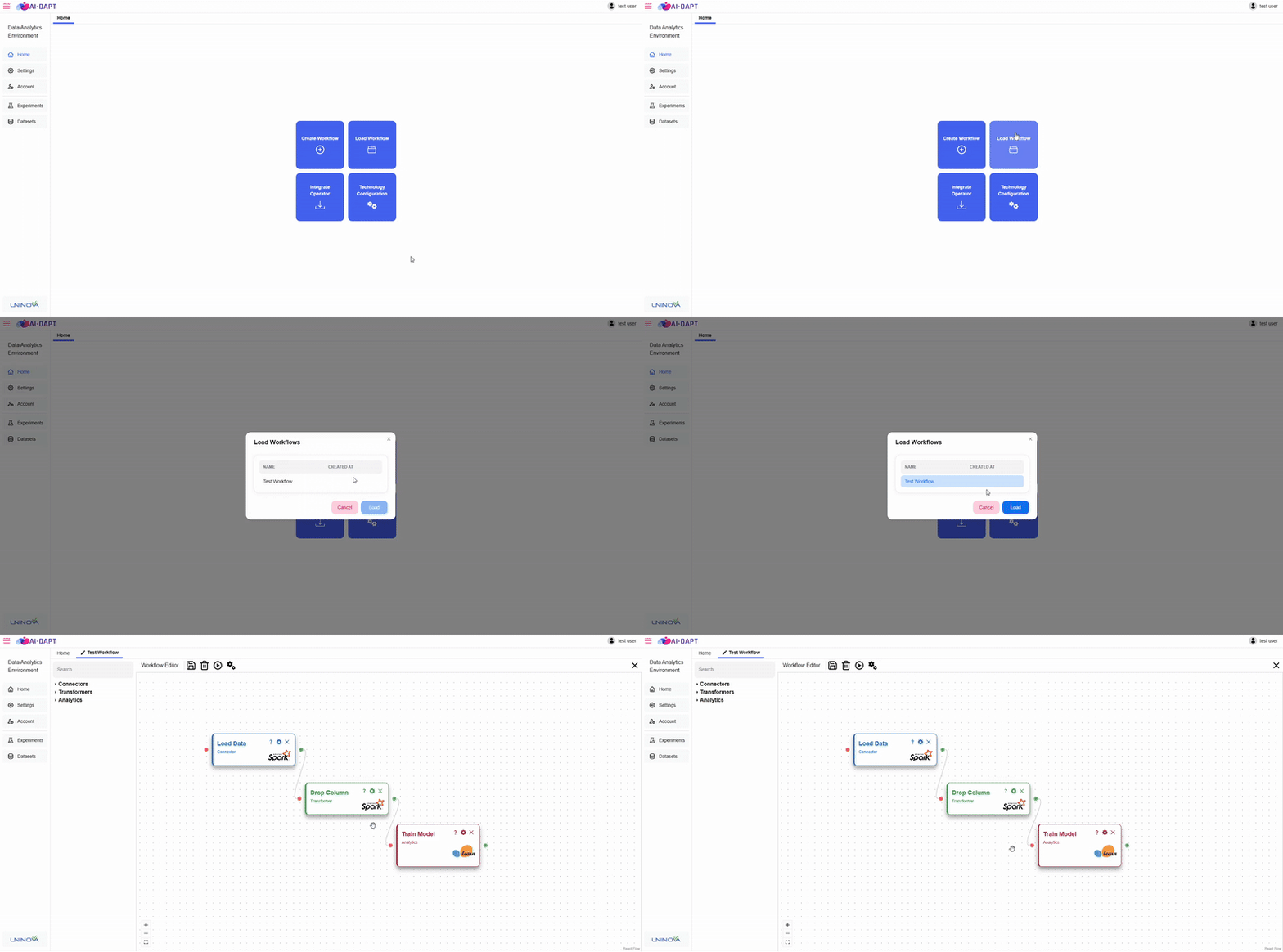
Saving and loading workflows
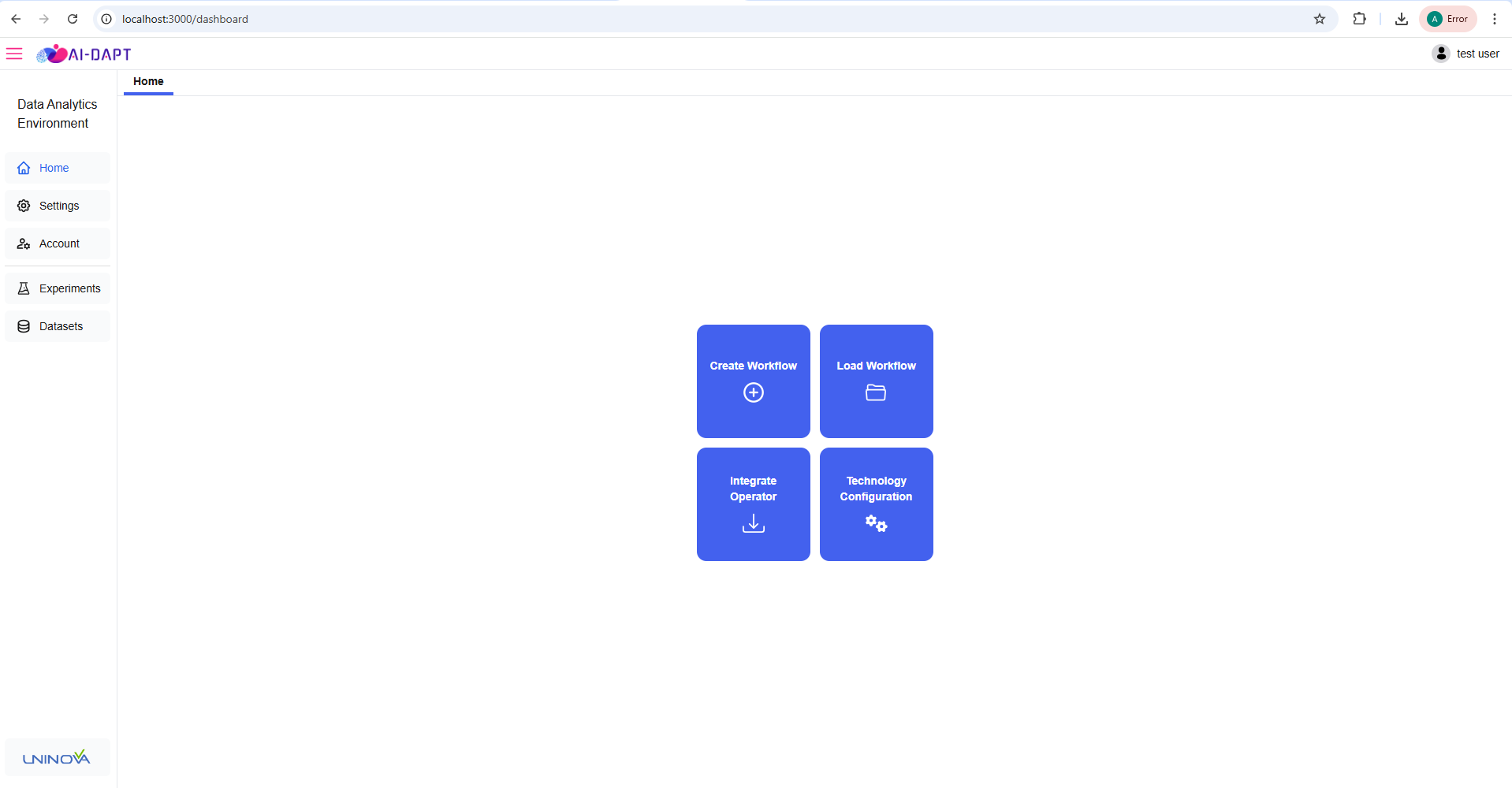
The image below depicts the Home page of the framework.
Adding Datasets
DAVE currently supports two types of data sources:
-
Relational databases (PostgreSQL, MySQL, etc.)
-
Files
Relational databases are always accessible during workflow execution. Files, however, must be uploaded before they can be used. This is handled via the Datasets functionality.
Datasets act as a repository where uploaded files can be stored and later accessed in workflows.
To access the datasets page:
-
Click Datasets in the left sidebar
This opens the datasets page, which displays a table of all available datasets.
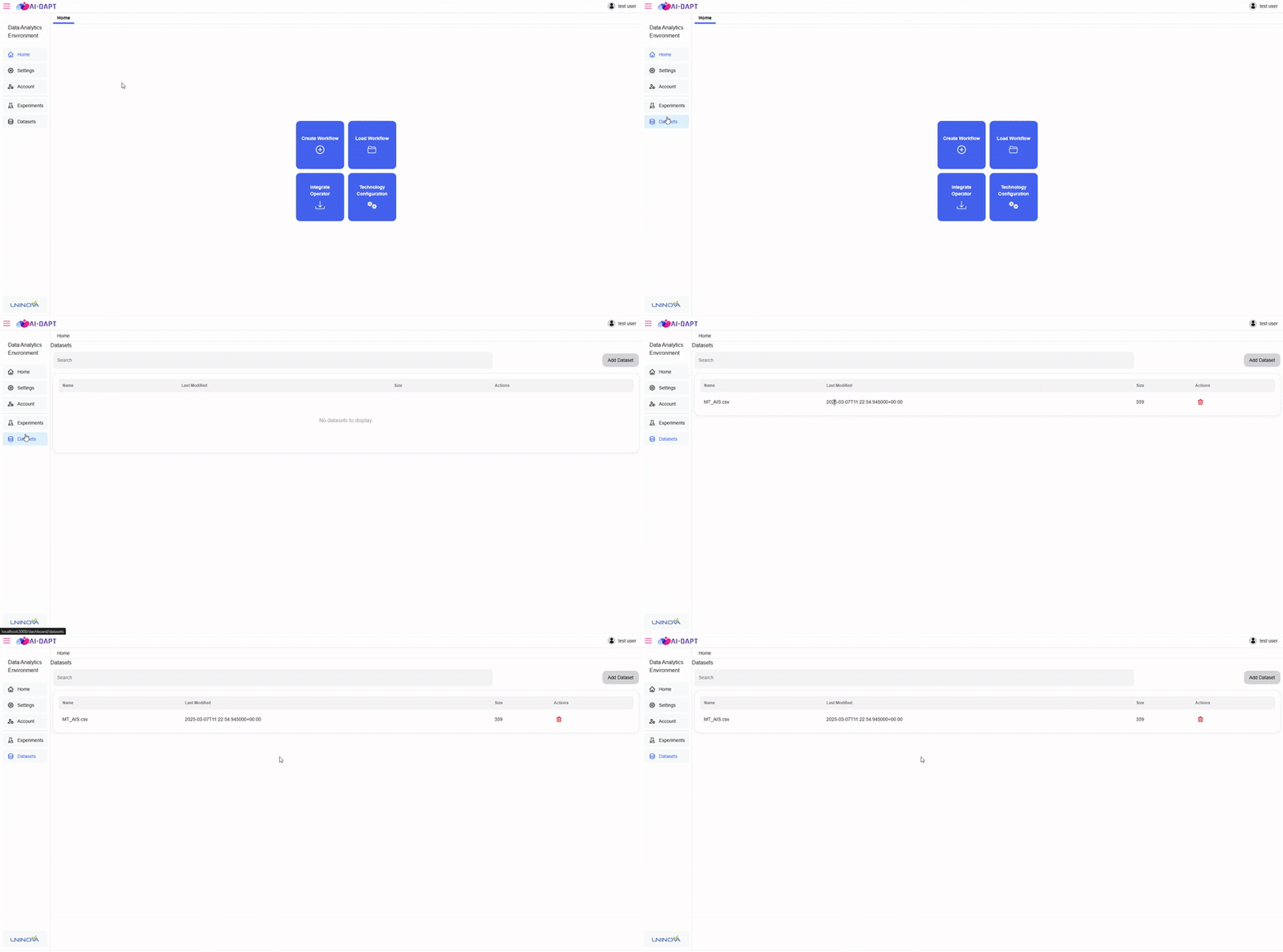
Adding a New Dataset
To upload a new dataset:
-
Click Add Dataset (top-right above the table)
-
You will be redirected to the upload page
-
Upload a CSV file (currently only CSV is supported)
-
Confirm upload
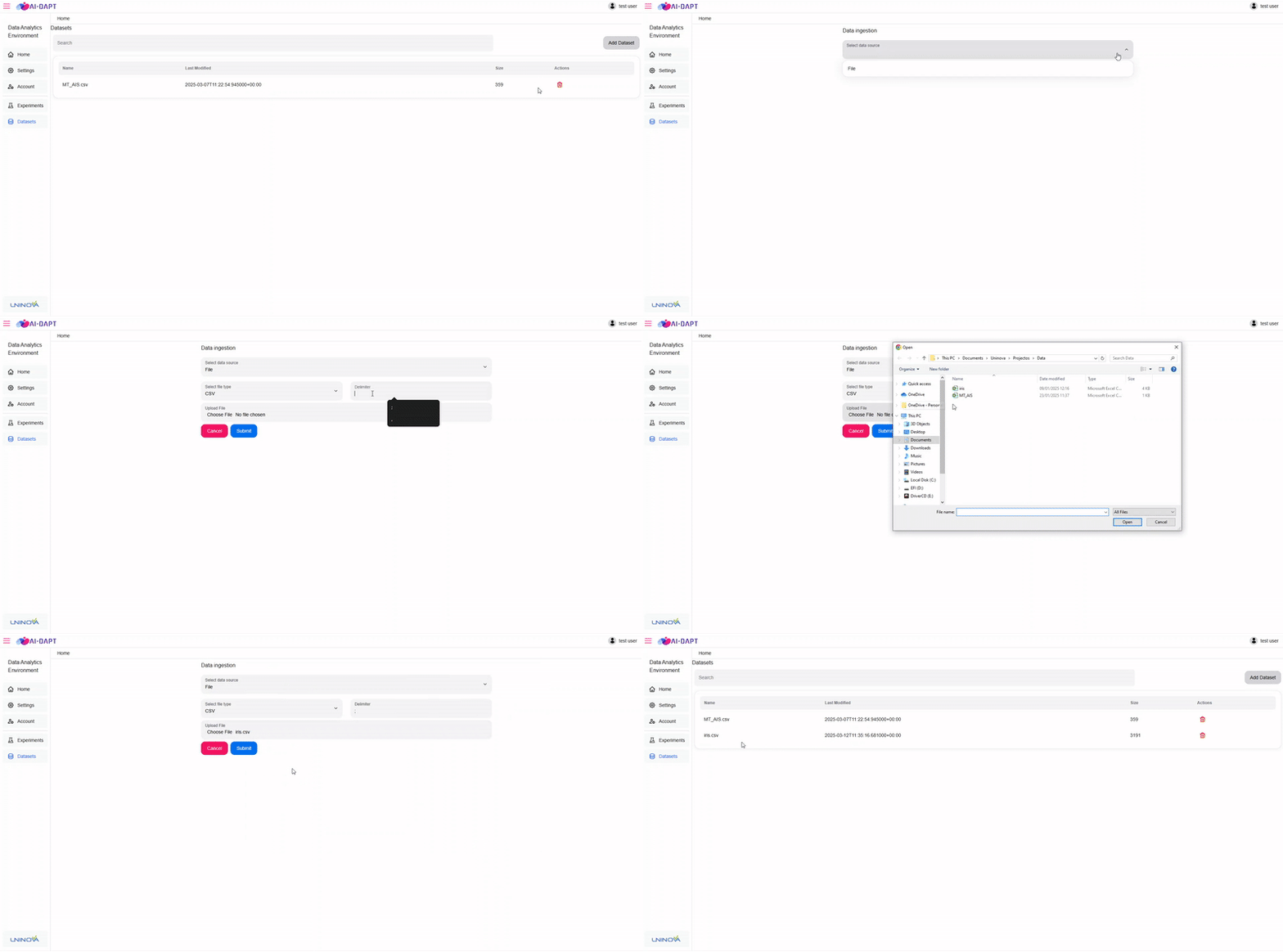
Using a Dataset in a Workflow
To use an uploaded dataset:
-
Add a File Connector operator to the workflow
-
Open operator settings
-
Select the dataset
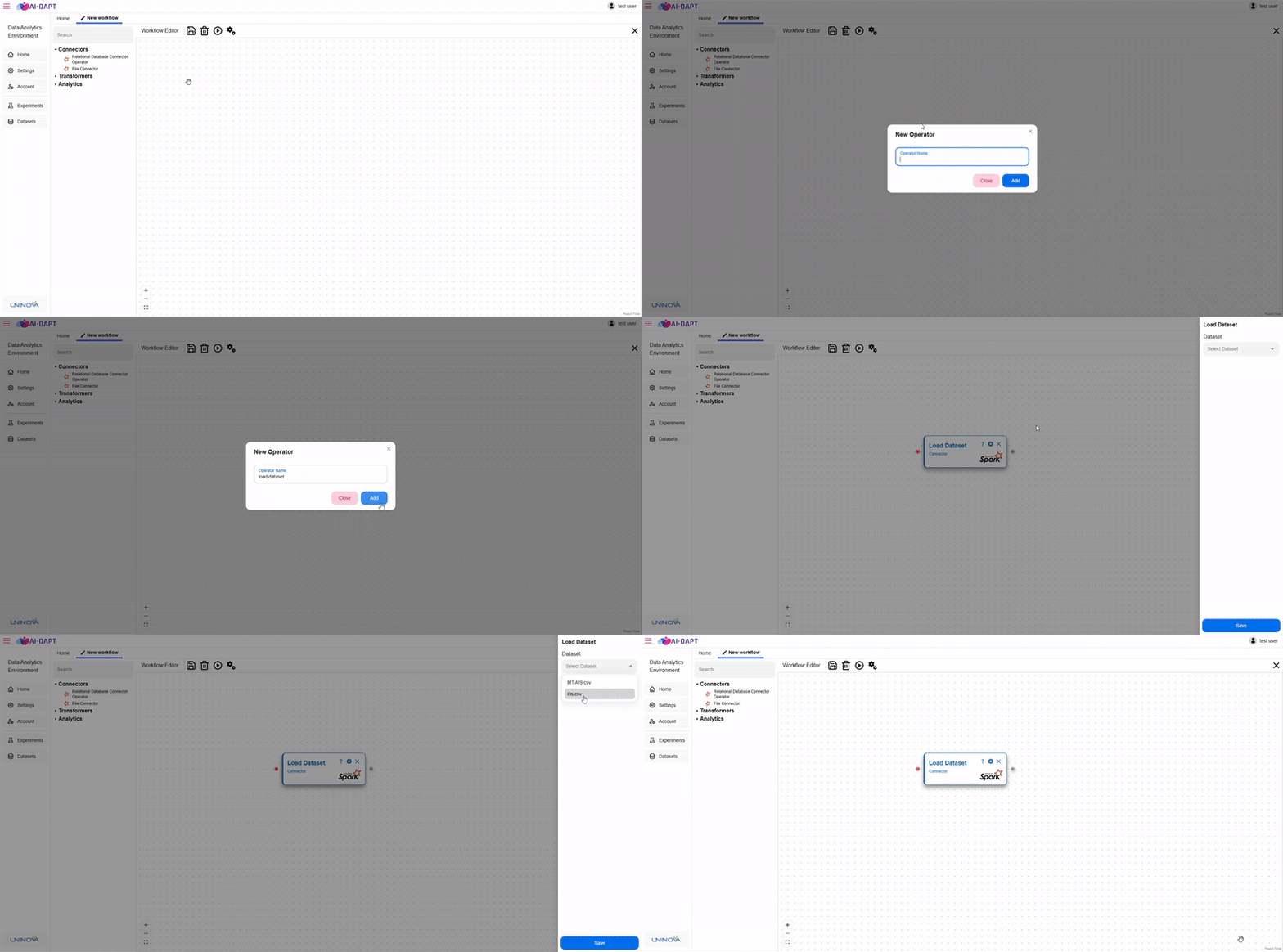
A full workflow example is available in [creating-new-workflow].
Creating New Workflow
To create a workflow:
-
Click Create Workflow in the workspace
-
A prompt appears in the center of the screen
-
Enter a workflow name
-
Click Create
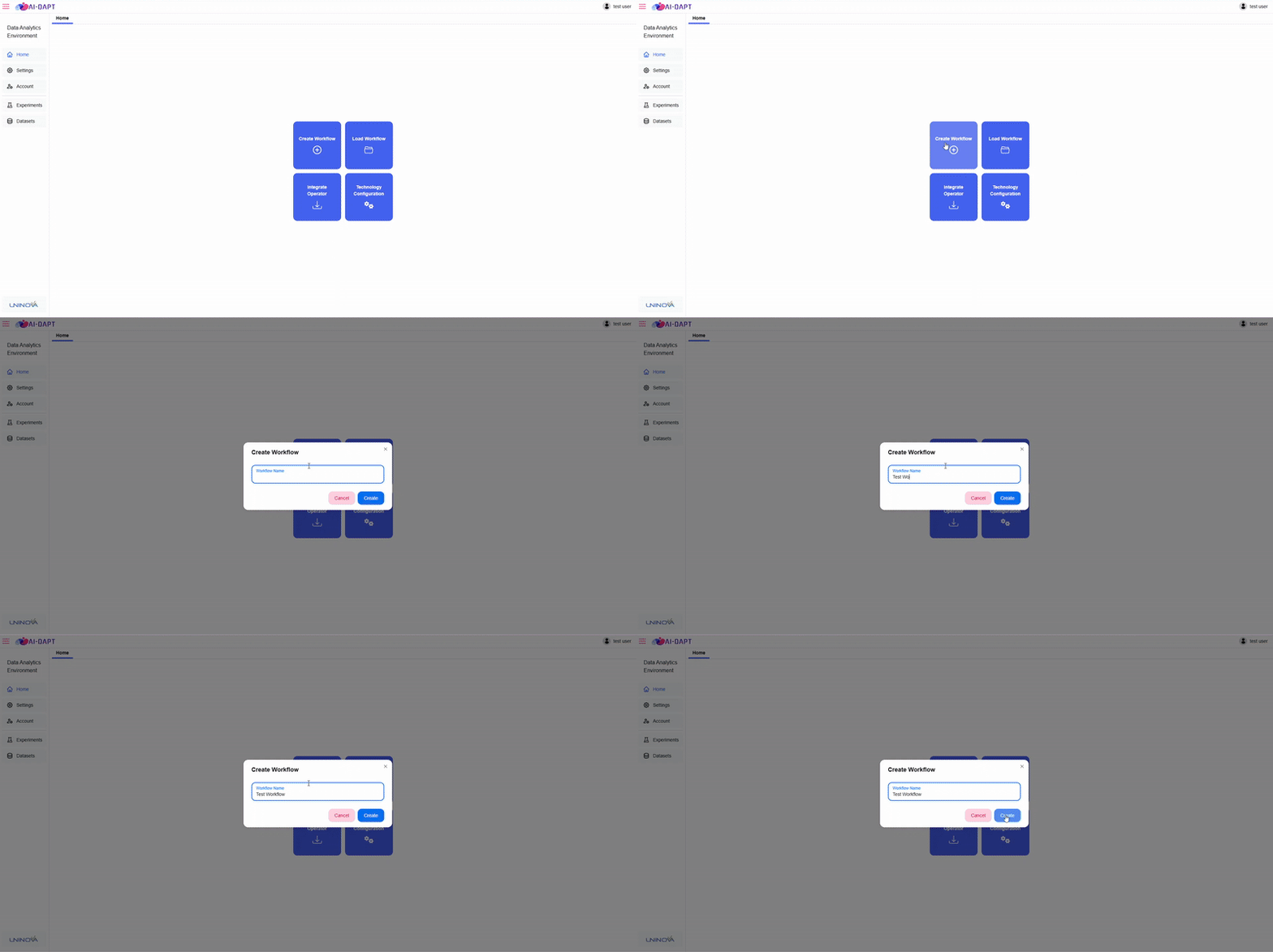
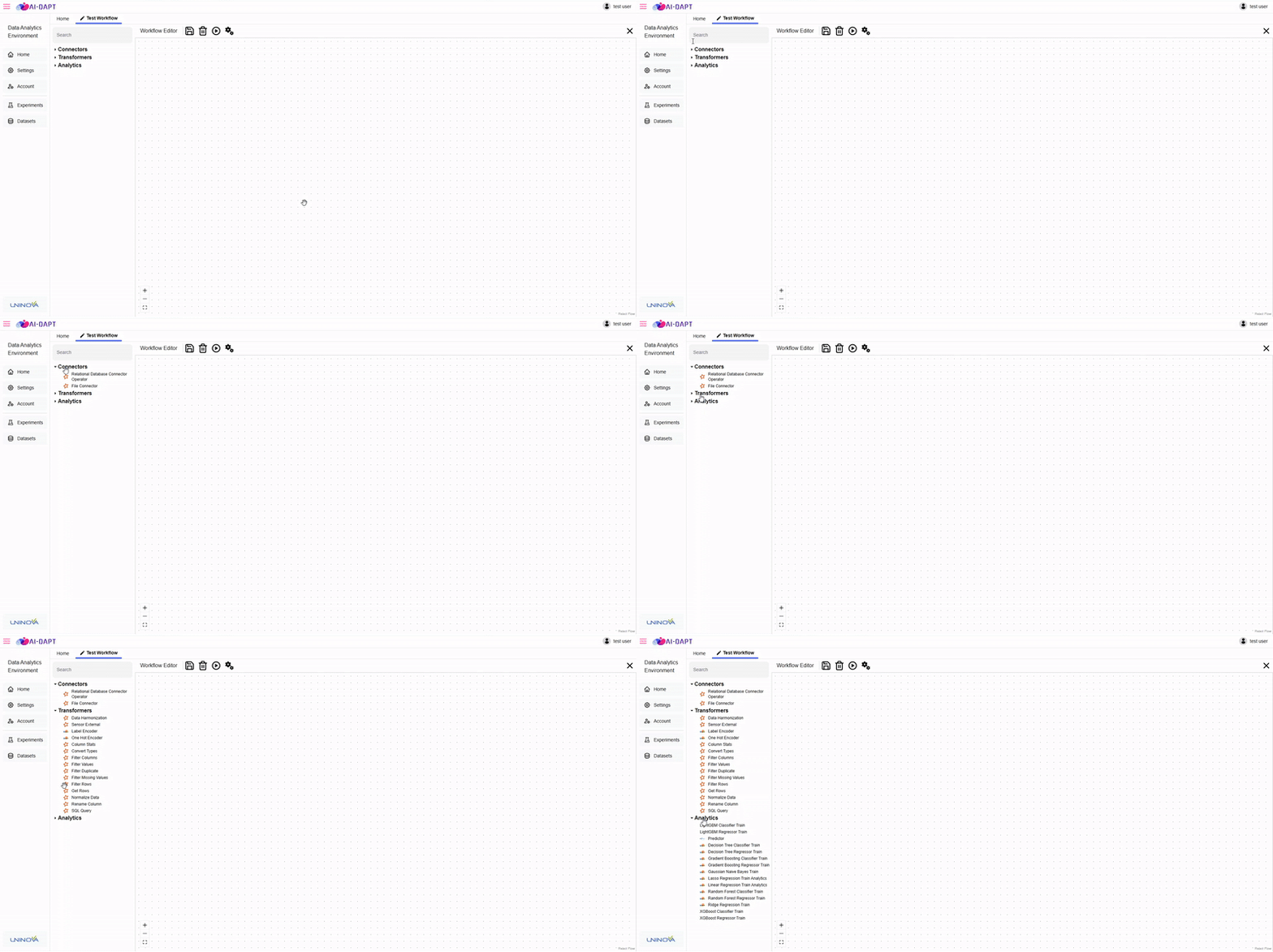
After creation:
-
A new tab appears in the header
-
The workspace canvas becomes available
-
Operator categories appear in the sidebar
Adding Operators
To add operators:
-
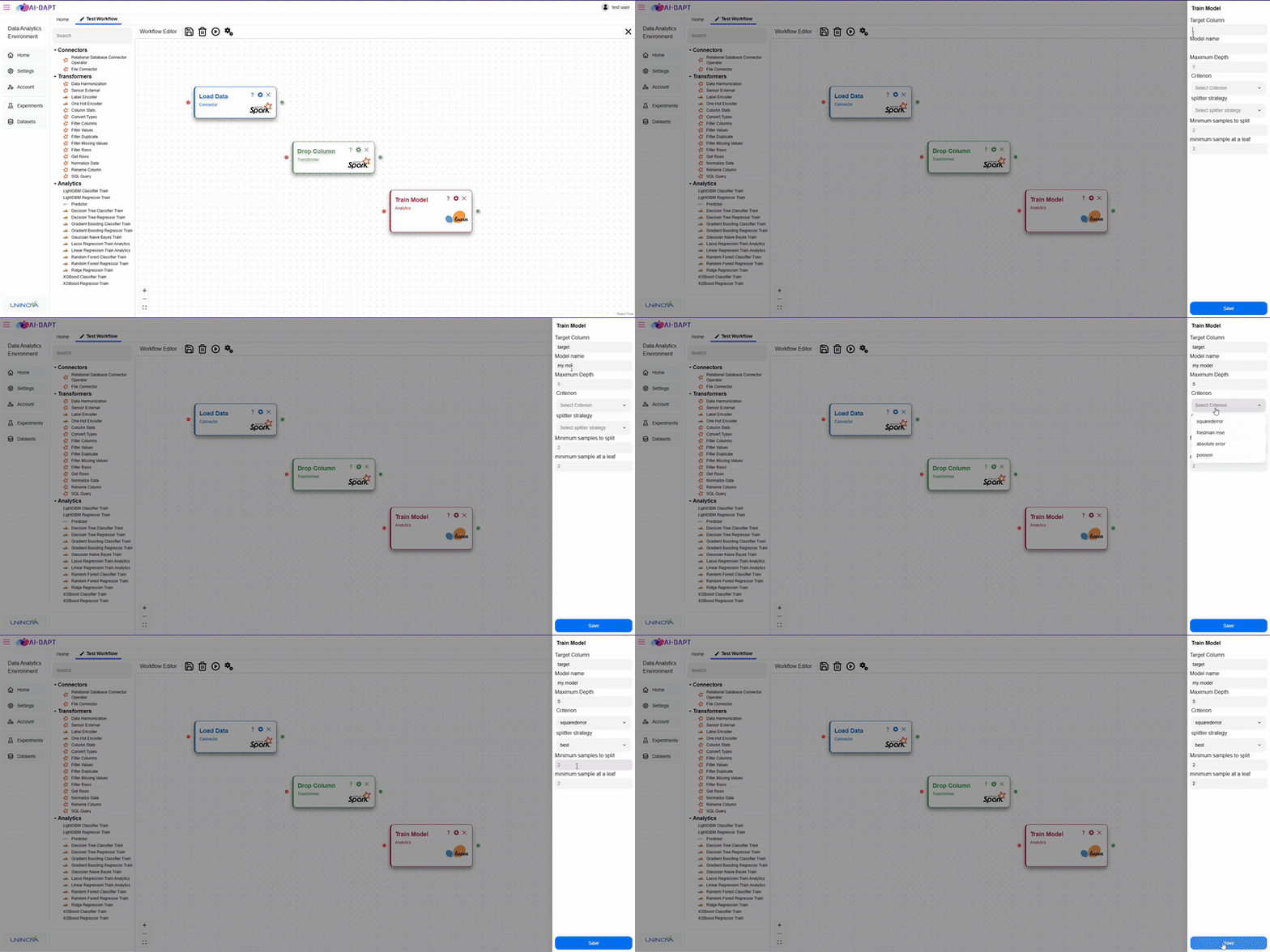
Drag and drop an operator into the canvas
-
Enter a name when prompted
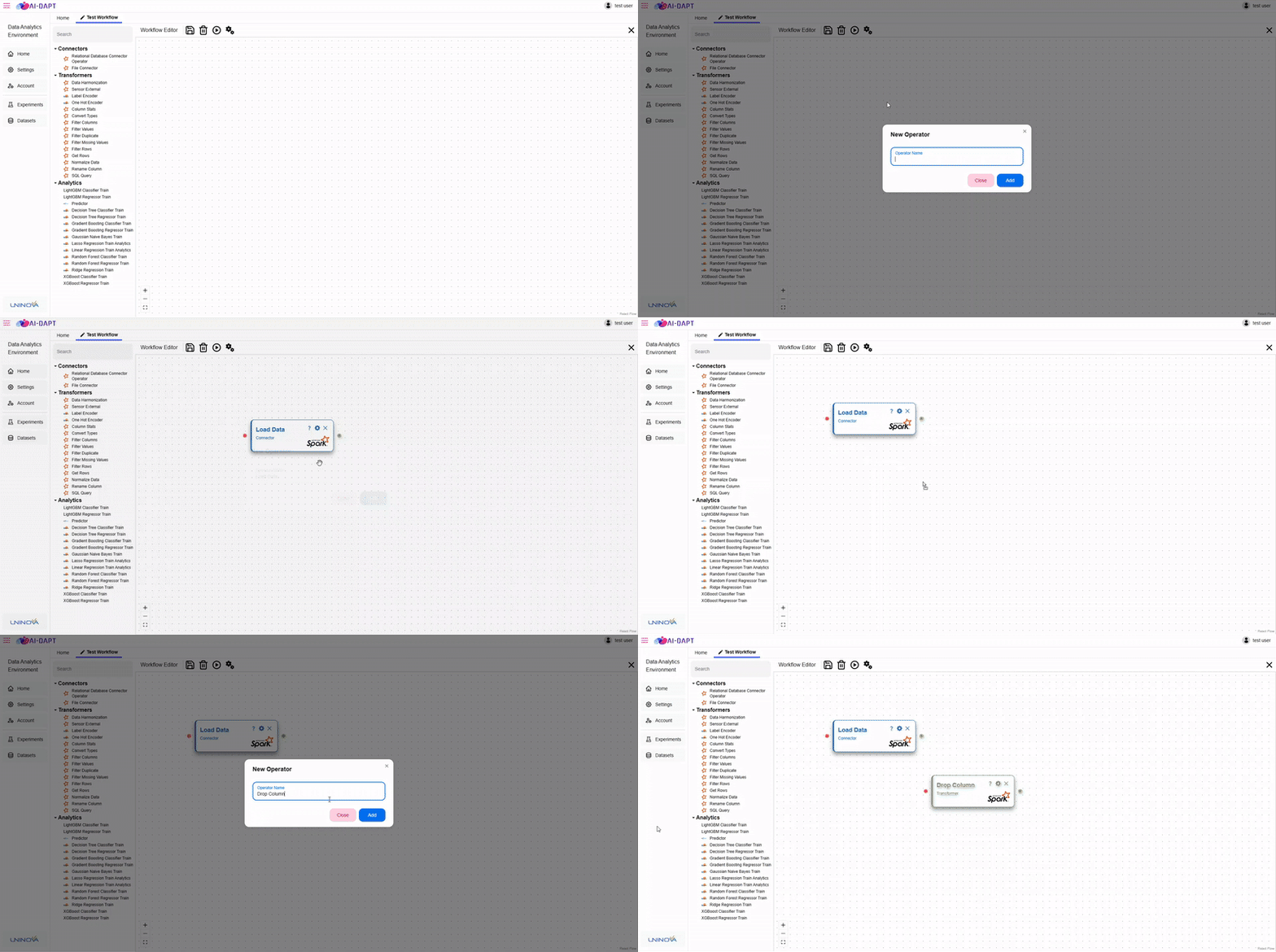
Operators are color-coded:
-
Blue → Connectors
-
Green → Transformers
-
Red → Analytics