Model Adaptation Tutorial
This guide provides a step-by-step walkthrough for monitoring AI models, configuring adaptiveness rules, and handling alerts within the Observability tool.
Prerequisites
Before starting, ensure you have:
-
Valid user credentials.
-
At least one model configured in the observability platform.
The Main Dashboard
The Main Page serves as the central hub for monitoring model health and adaptiveness alerts.
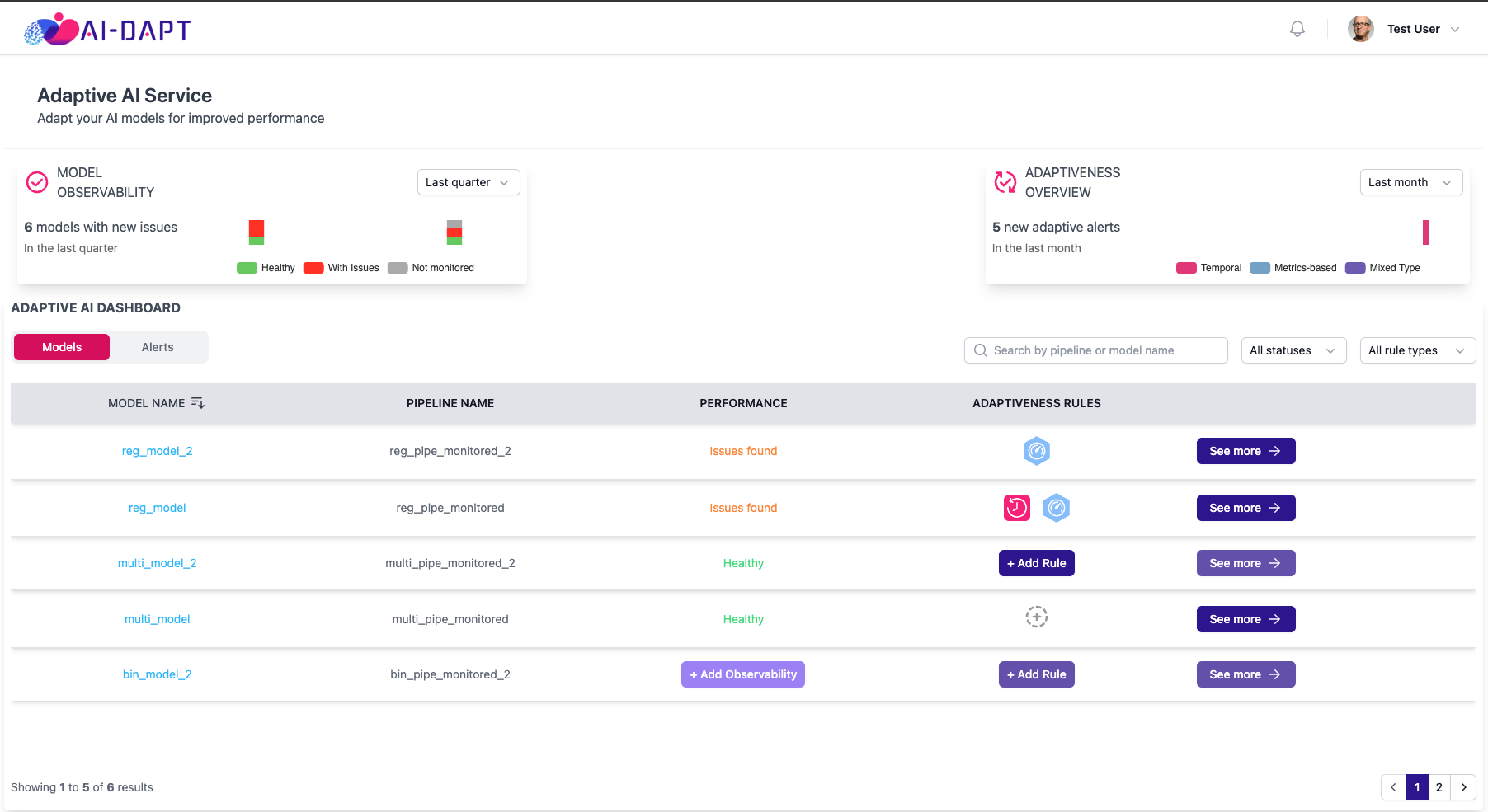
Dashboard Overview
At the top of the page, two charts display a summary of all models and adaptiveness alerts. You can filter these results by time period: Quarter, Month, or Year.
The dashboard contains two primary tabs: Models and Alerts.
Managing Models
By default, the dashboard displays the Models list. This view provides:
-
Information about the models.
-
Current health status.
-
Active adaptiveness rules.
Navigation Actions:
-
See More: Click this to navigate to the Monitor and Adapt page for detailed insights.
-
Add Rules: Visible if a model has no rules. Clicking this creates a default rule and redirects you to the Rules Configuration Page.
-
Plus Icon (+): Visible if a rule exists but contains no conditions.
-
Add Observability: Visible if the model lacks observability setup. Redirects to the Model Observability setup.
Managing Alerts
Switching to the Alerts tab displays a list of all active and addressed alerts.
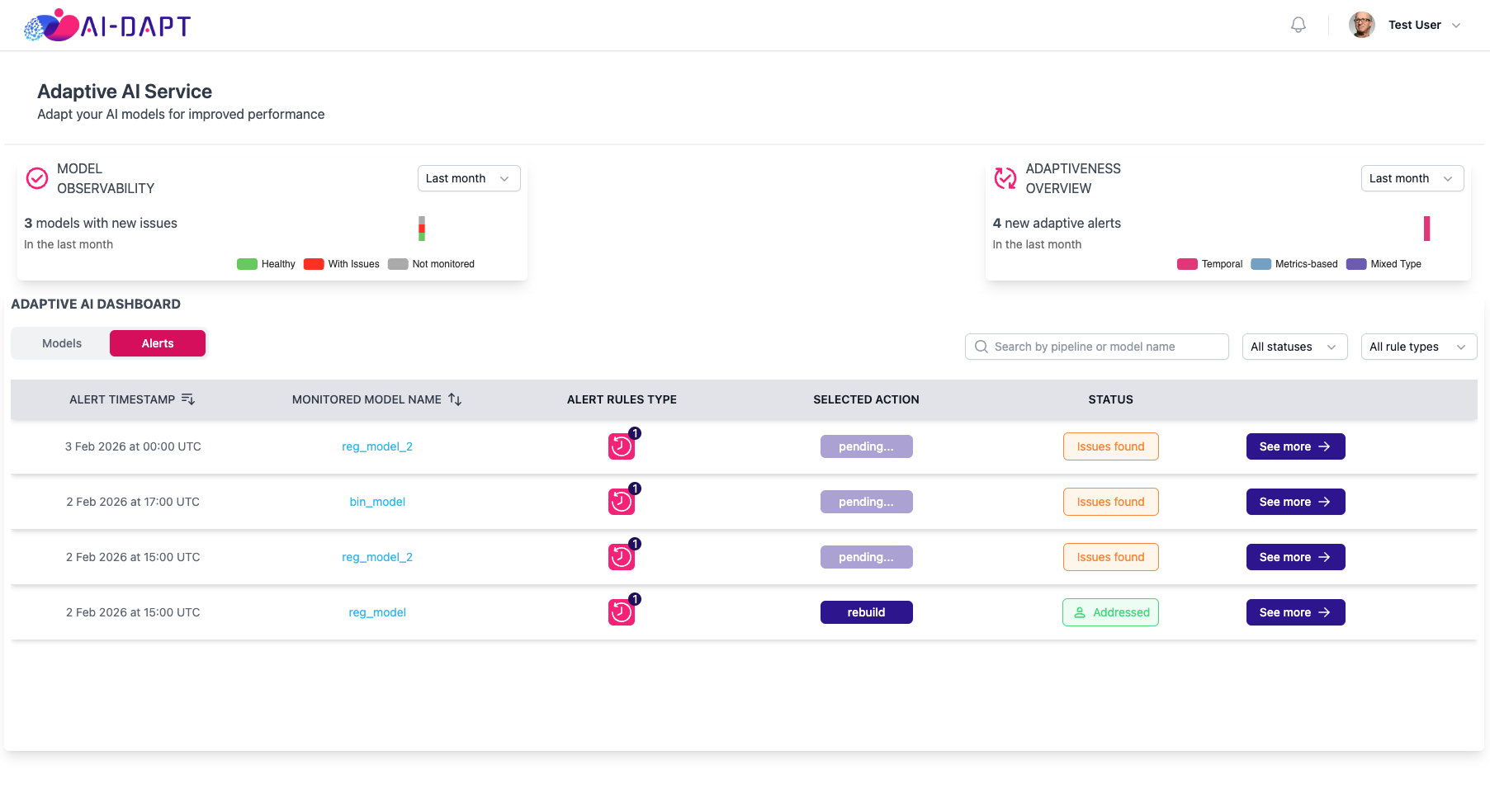
Each entry displays:
-
The monitored model.
-
The rule type that triggered the alert.
-
The current status.
Alert Status Meanings:
| Status | Description |
|---|---|
Issues Found |
The alert is active and requires attention. The action status will be "Pending." |
Addressed |
The alert has been resolved by applying a specific action (e.g., Rebuild, Replace). |
Dismissed |
The alert was reviewed and dismissed without applying an action. |
Rules Configuration Page
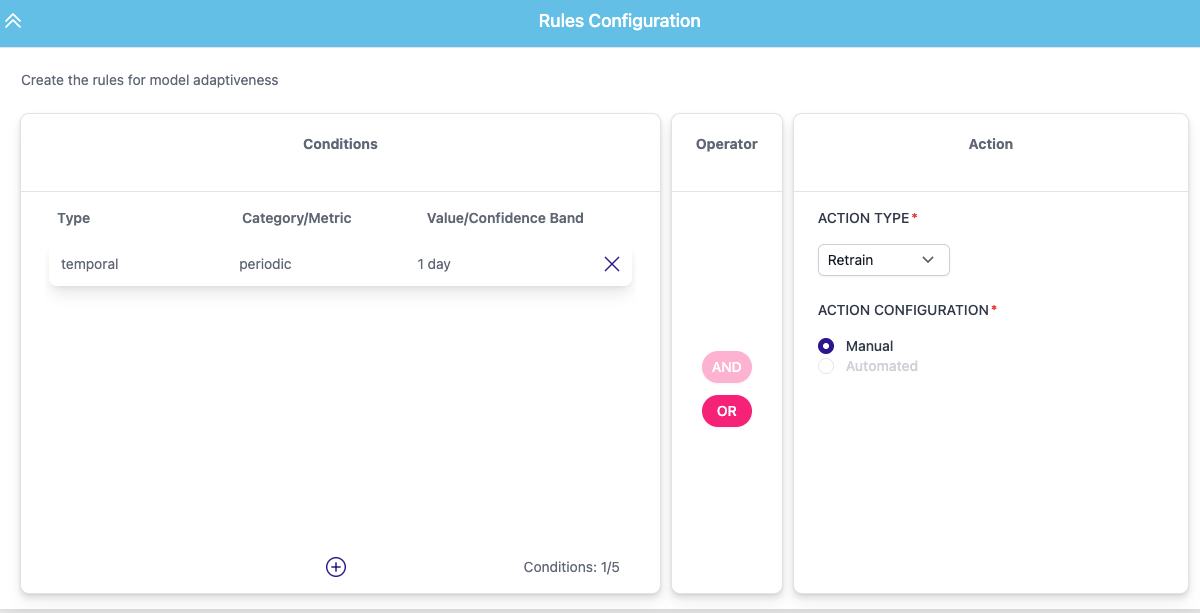
The Rules Configuration Page allows you to define the logic that triggers alerts.
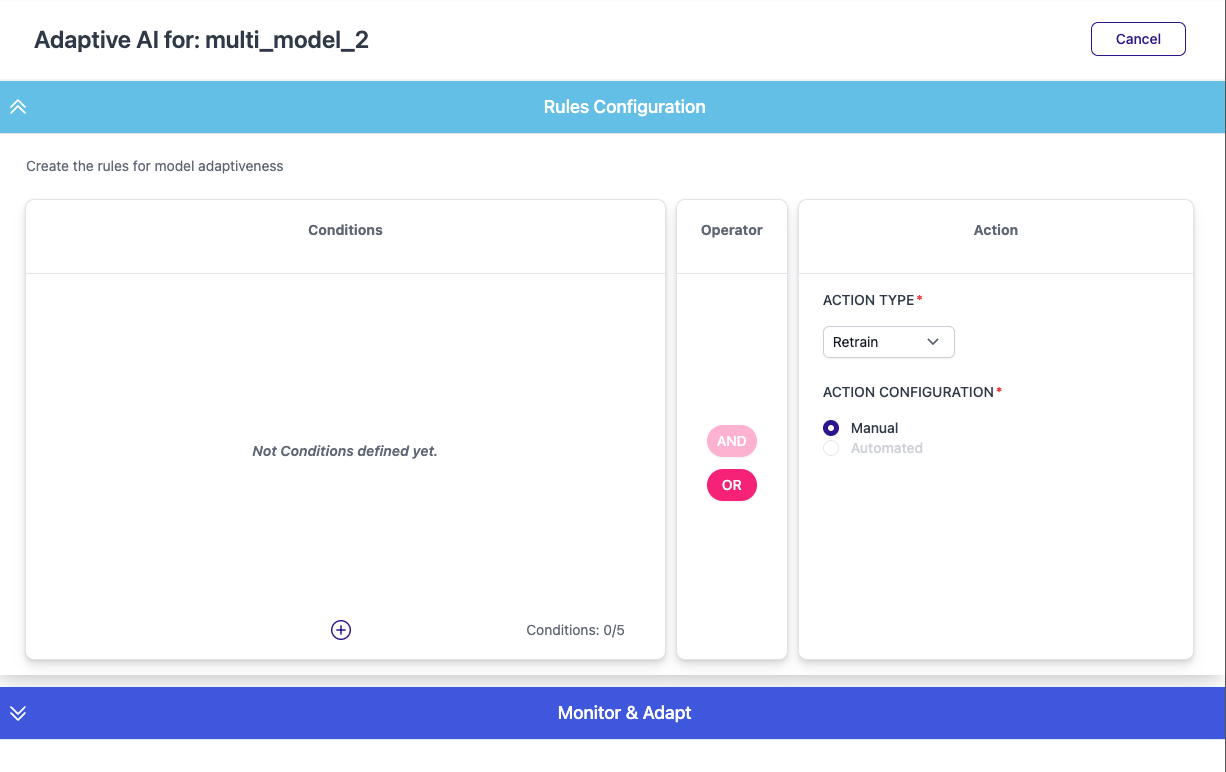
Here you can set multiple conditions, logical operators, and the remedial action available to the user.
Adding Conditions
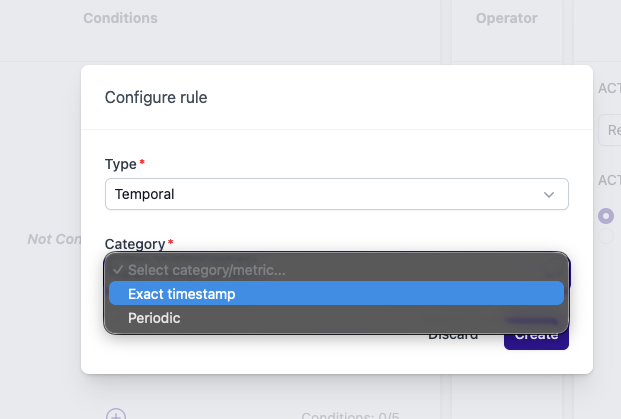
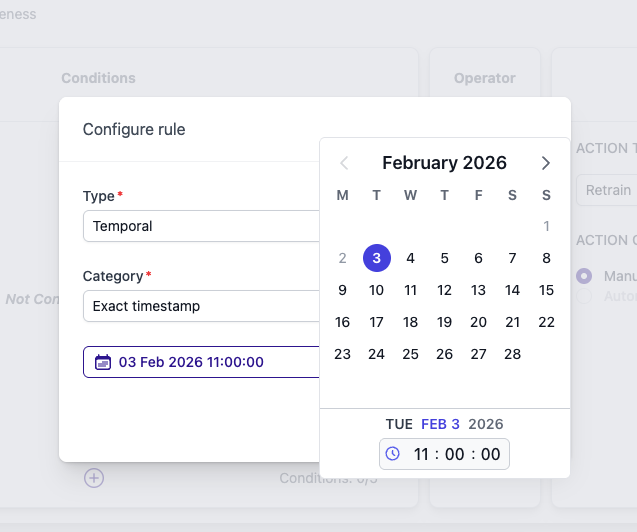
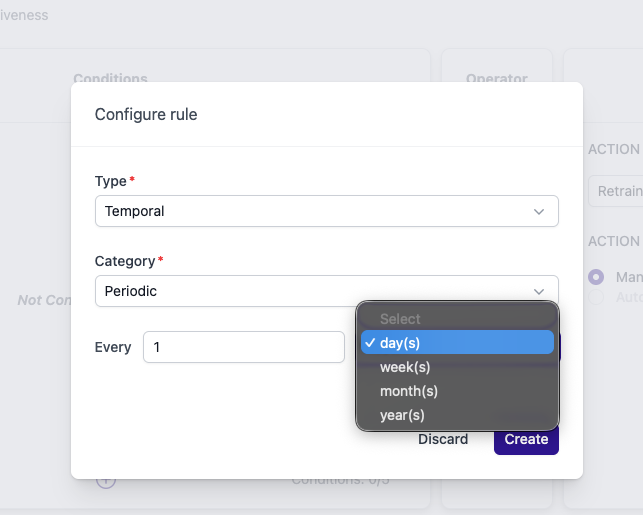
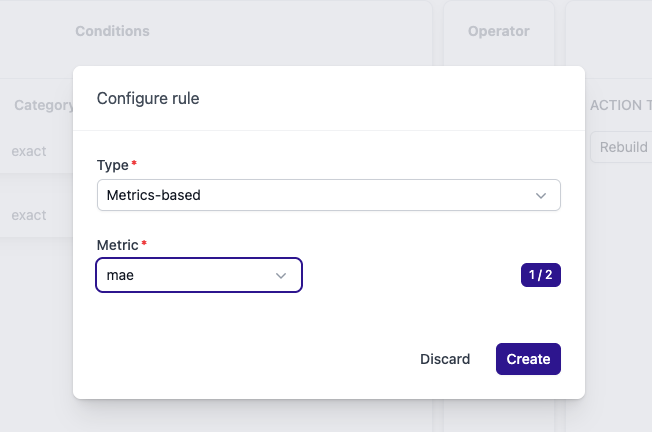
Click the Plus (+) icon to open the configuration dialog. There are two categories of conditions:
Operators and Actions
Once conditions are set, configure the following:
-
Operator: Choose
AND/ORto determine how multiple conditions are combined. -
Action: Select the action type available to the user when an alert is triggered.
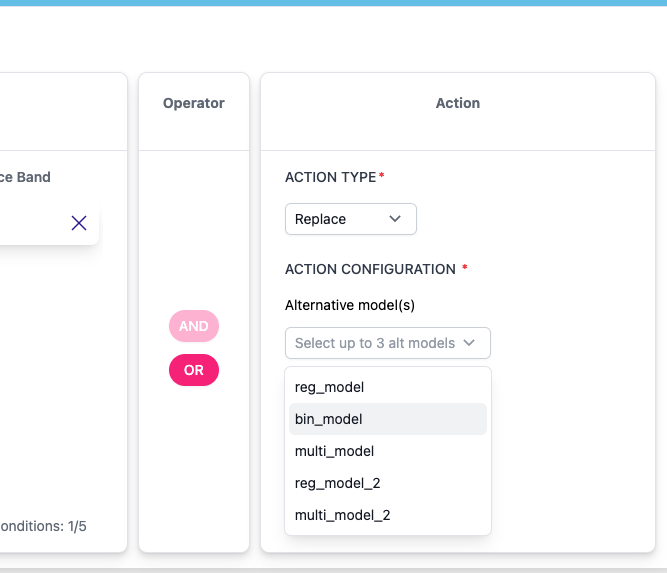
| If you select the Replace action, you must specify three alternative models. The user will choose one of these replacements when addressing the alert. |
Monitor and Adapt Page
Access this page by clicking See More on the Main Page or via the Rules Configuration accordion. This section allows you to review alert history and apply remedial actions.
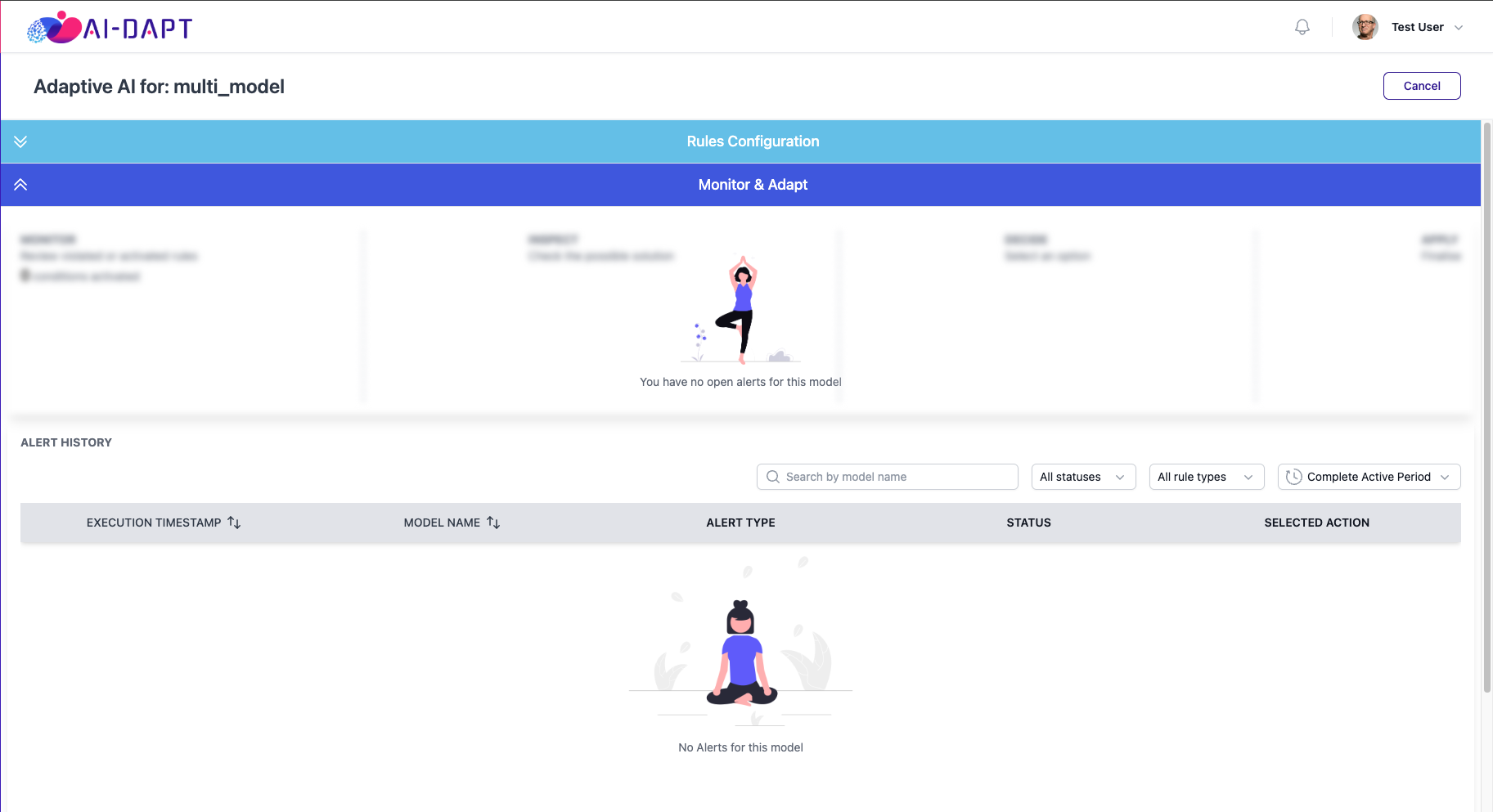
If no alerts have been generated, the view will appear empty:
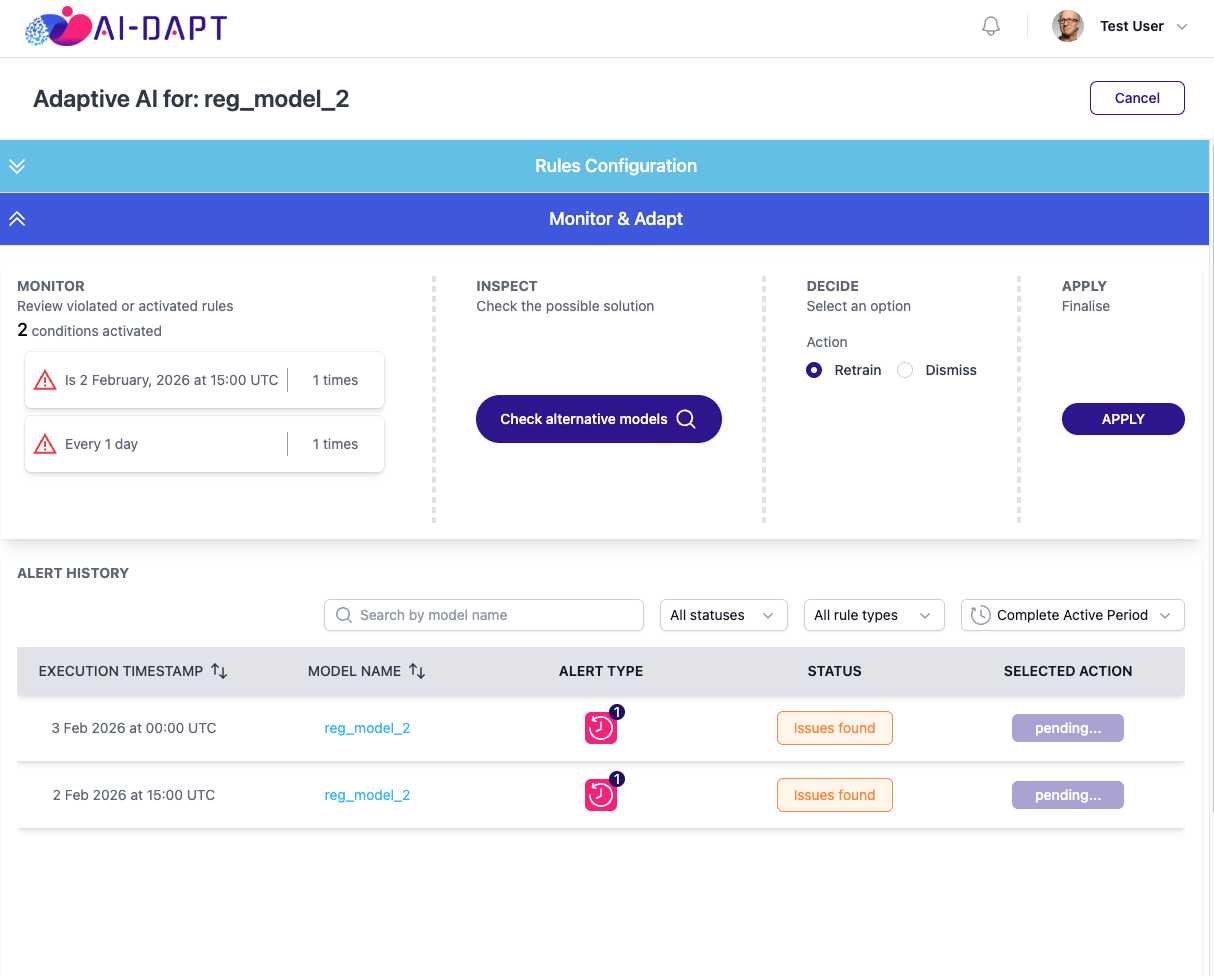
Workflow: Inspect, Decide, Apply
The preview section is divided into four stages:
Monitor |
Review an aggregated summary of all active conditions (alerts that are active and pending). |
|---|---|
Inspect |
Click Inspect to view guidelines regarding the recommended action. |
Decide |
Choose to apply the configured action or dismiss the alert. (For "Replace" actions, select the specific replacement model here). |
Apply |
Execute the decision made in the previous step. |
Alert History
The history section lists all generated alerts for the specific rule and model.
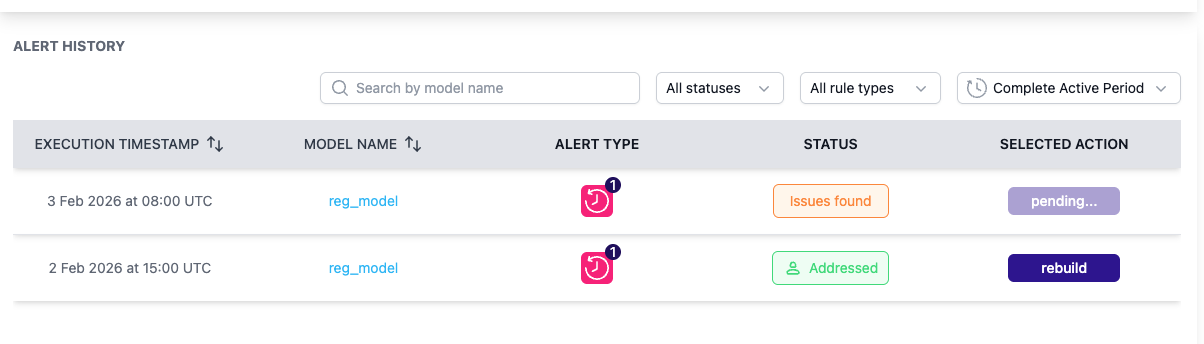
This list includes the "Alert Type" (the condition met) and the status (Issues Found, Addressed, or Dismissed).
Example: Resolving an Alert
The following scenario demonstrates how to resolve an active alert.
-
Identify the Issue: An alert is active with the status
Issues Foundand the action isPending.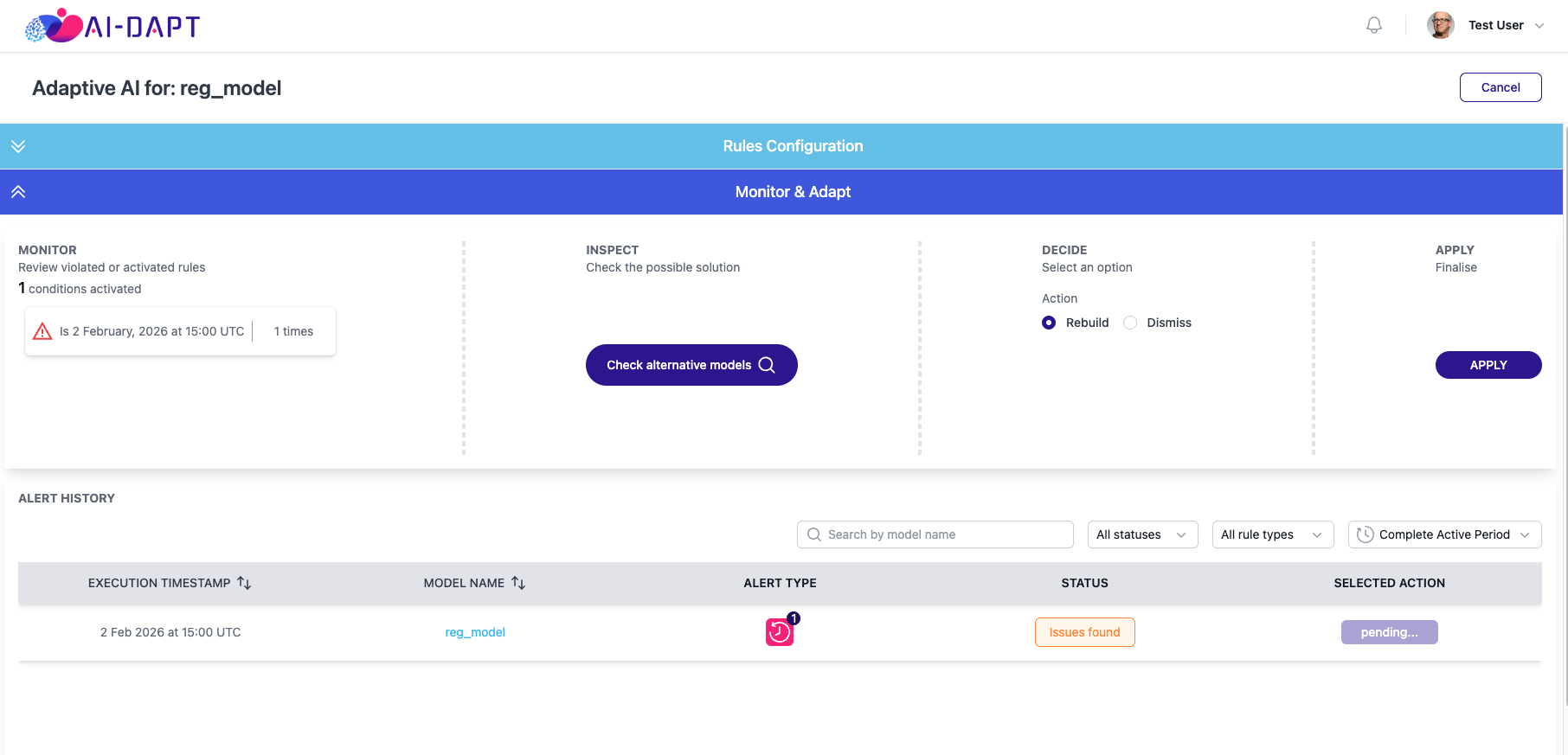
-
Apply Action: The user selects the Rebuild action and clicks Apply.
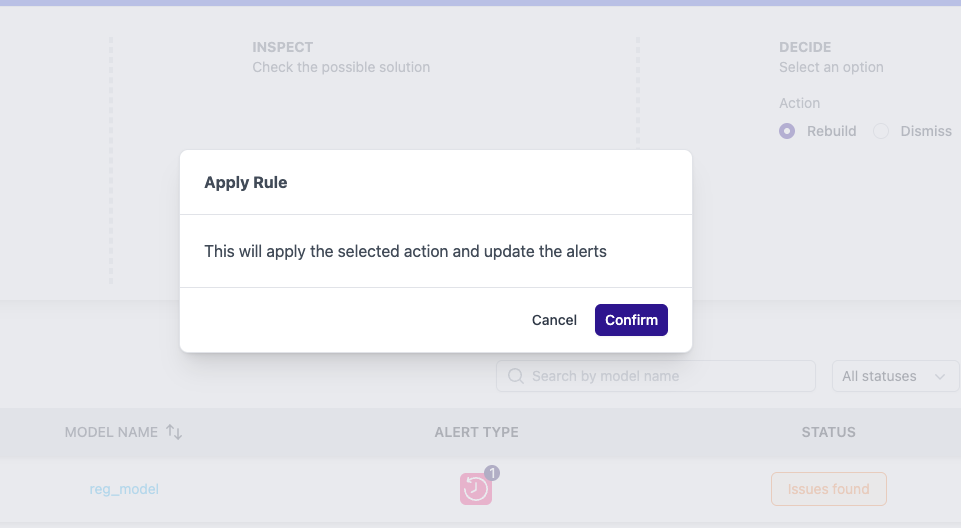
-
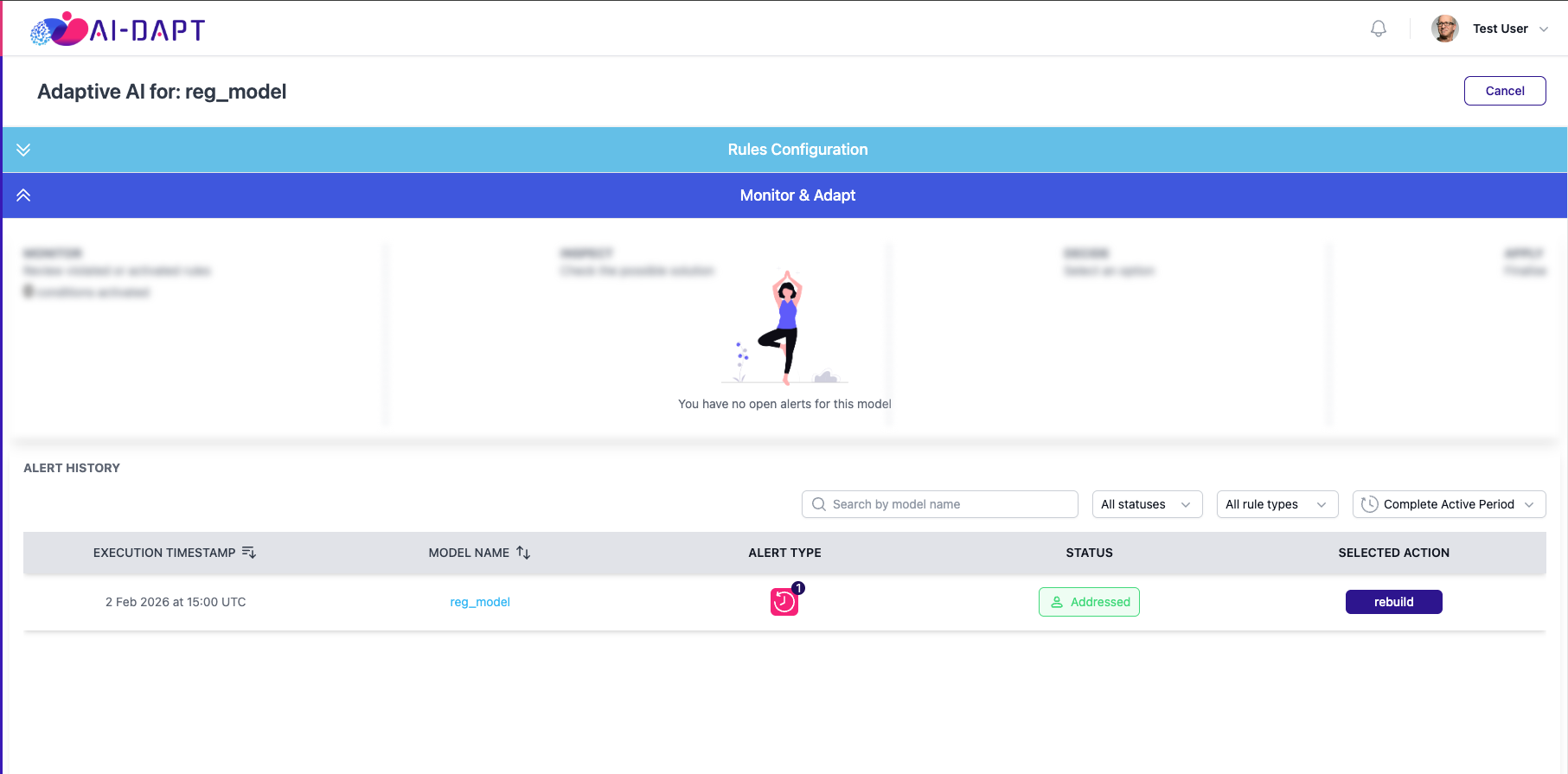
Result: Upon confirmation:
-
The action is applied.
-
The alert status updates to
Addressed. -
The specific action taken is logged as
Rebuild. -
Any conflicting active alerts are automatically dismissed.
-