View Models
In the first page you can view a list of all the Data Models you have created.
-
You can search Data Models (e.g by name, domain or version), by typing your desired keyword on the "Search" input box
-
You can also sort the list by the field you desire, by clicking on the sorting icon next to the column’s name
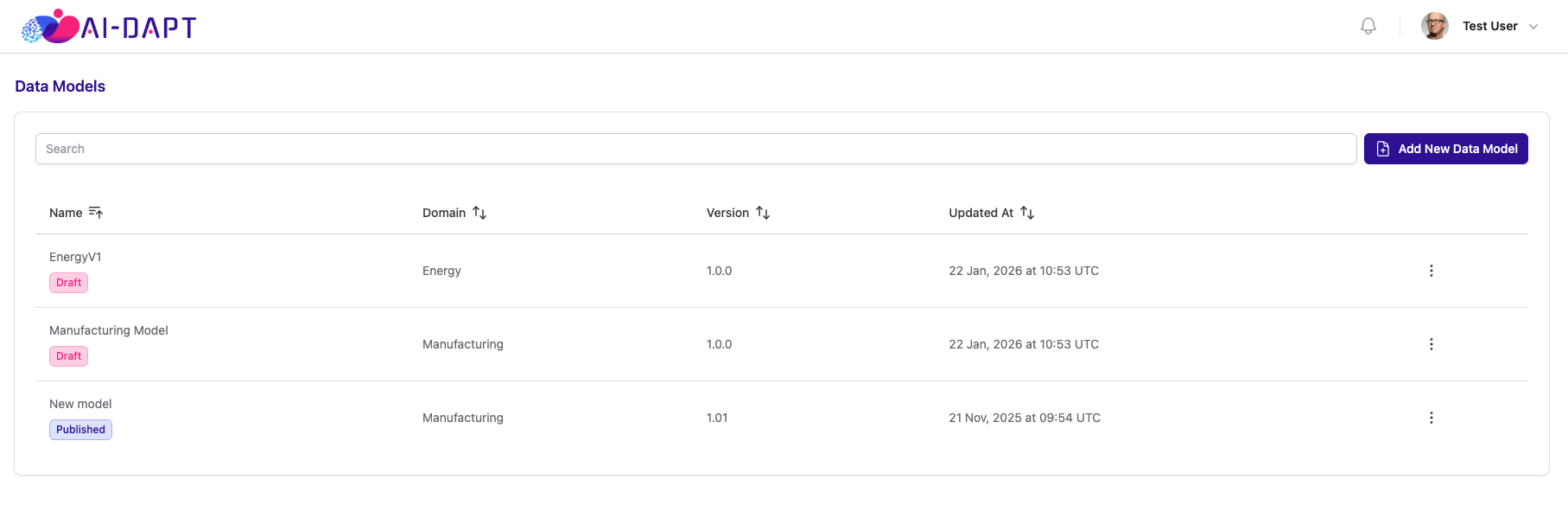
To create a new Data Model, click Add New Data Model.
For detailed instructions, please refer to the Create Data Model page.
Actions
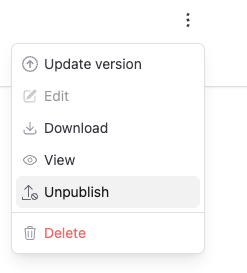
For each Data Model on the list you have various options, you can view them by clicking on the 3-dot icon at the end of the row.
Below you can find details about each one of these options.
Update a Data Model
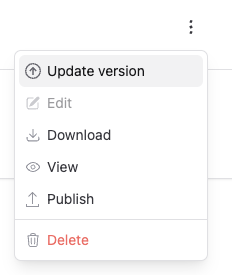
You can update a Data Model by clicking on the Update version option. This will take you to a dedicated page where you can modify the Data Model details.
For detailed instructions, please refer to the Update Data Model page.
View a Data Model
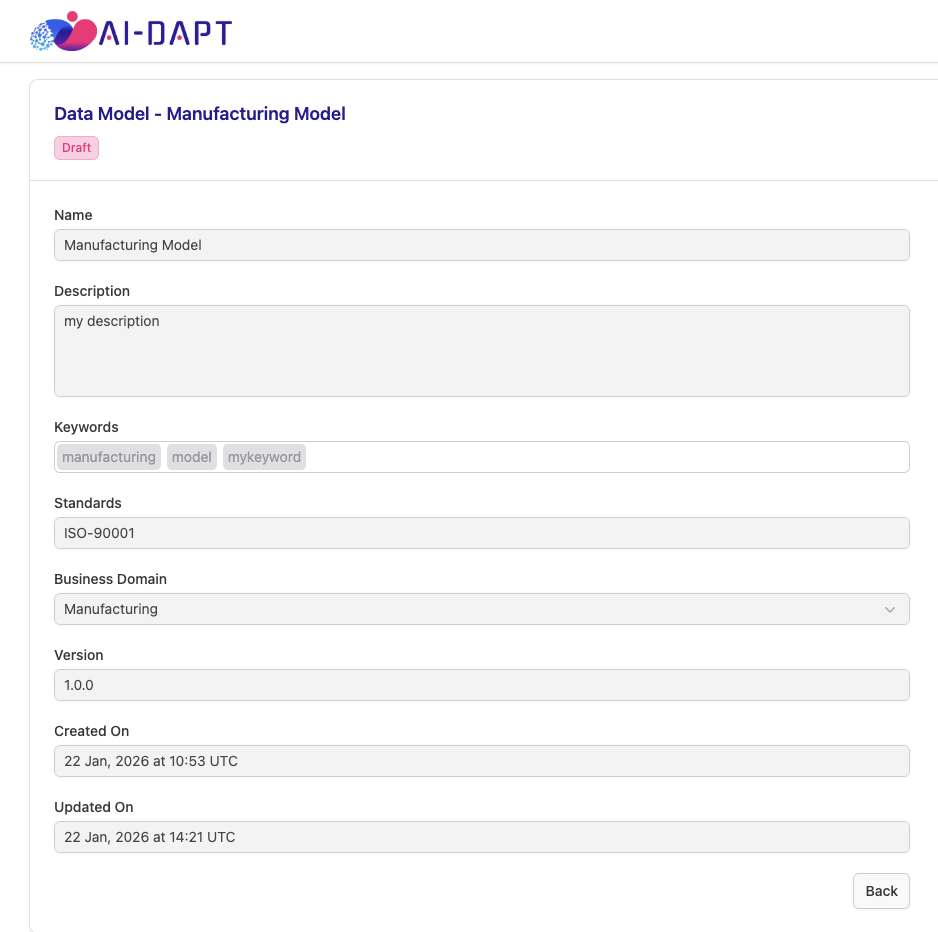
You can view the detailed information of a Data Model by clicking on the View option. This will take you to a dedicated page where you can view the Data Model’s metadata information.
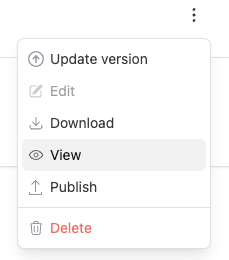
In the dedicated page, you will be able to view the information in readonly mode. In order to update any of the information, please refer to the 'Update a Data Model' section.
Downloading a Data Model
You can download the Data Model’s file by clicking the Download option
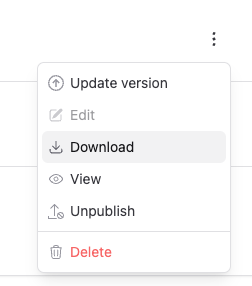
The json file will then be downloaded and saved directly to your device.
Publish a Data Model
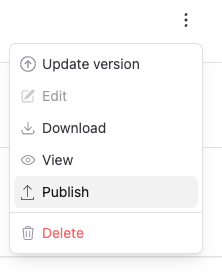
If the Data Model is in Draft status, you will be able to publish it by clicking on the Publish option.
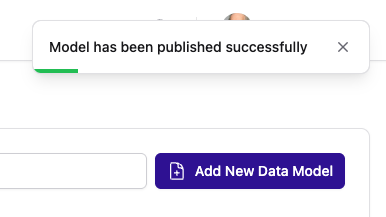
Once published, a success confirmation will appear in the top-right corner of the screen.
You will also be able to notice that the status under the Name of that Data Model was changed to 'Published'
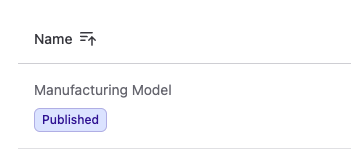
Unpublish a Data Model
In case you want to unpublish it, you will be able to do so by clicking on the Unpublish option.
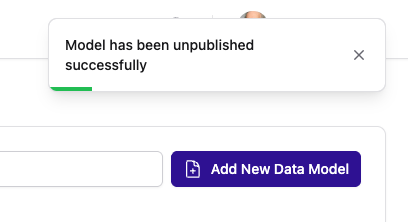
Once unpublished, a success confirmation will appear in the top-right corner of the screen.
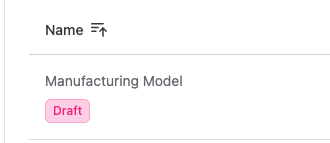
You will also be able to notice that the status under the Name of that Data Model was changed to 'Draft'
Deleting a Data Model
You can delete a Data Model by clicking on the Delete option.
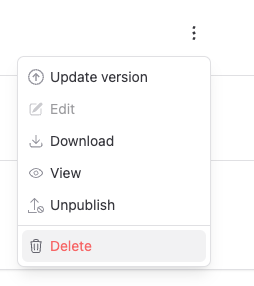
A confirmation popup will then appear, and by clicking "Yes", the deletion will proceed.
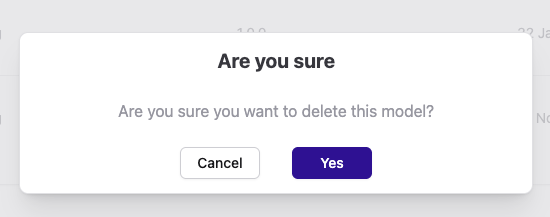
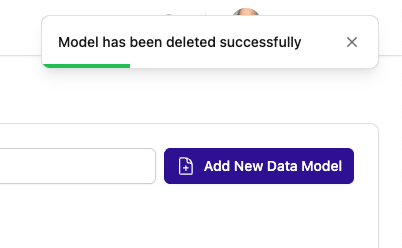
Once deleted, a success confirmation will appear in the top-right corner of the screen. The Data Model will also be removed from the list on the table.